Menu bar getting crowded?Tuck it away on macOS 27.
Hide the icons you rarely use and bring them back with one click.
When you're done, Auto Collapse tidies up on its own.


Starting with macOS 27, icons that don't fit move into the system's hidden items. Tools that push them away with a giant spacer no longer hide anything. Auto Collapse is built for the new menu bar.
Opened your hidden icons?
They tidy up on their own.
A few seconds after you show hidden icons, Auto Collapse puts them away again. It waits while your pointer is on the menu bar.

Small, with just what you need
Light and quiet like a menu bar app should be. No accounts, no permission prompts.
Collapse with one click
Click the arrow to hide the icons left of the divider. Click again to bring them back.
Always-hidden section
Keep icons you never need hidden even when expanded. Option-click the arrow to see them.
Global shortcut
Show or hide icons from anywhere with your own shortcut.
Adjusts on its own
It tidies up again when you switch apps, connect a display or wake your Mac.
Set up in seconds
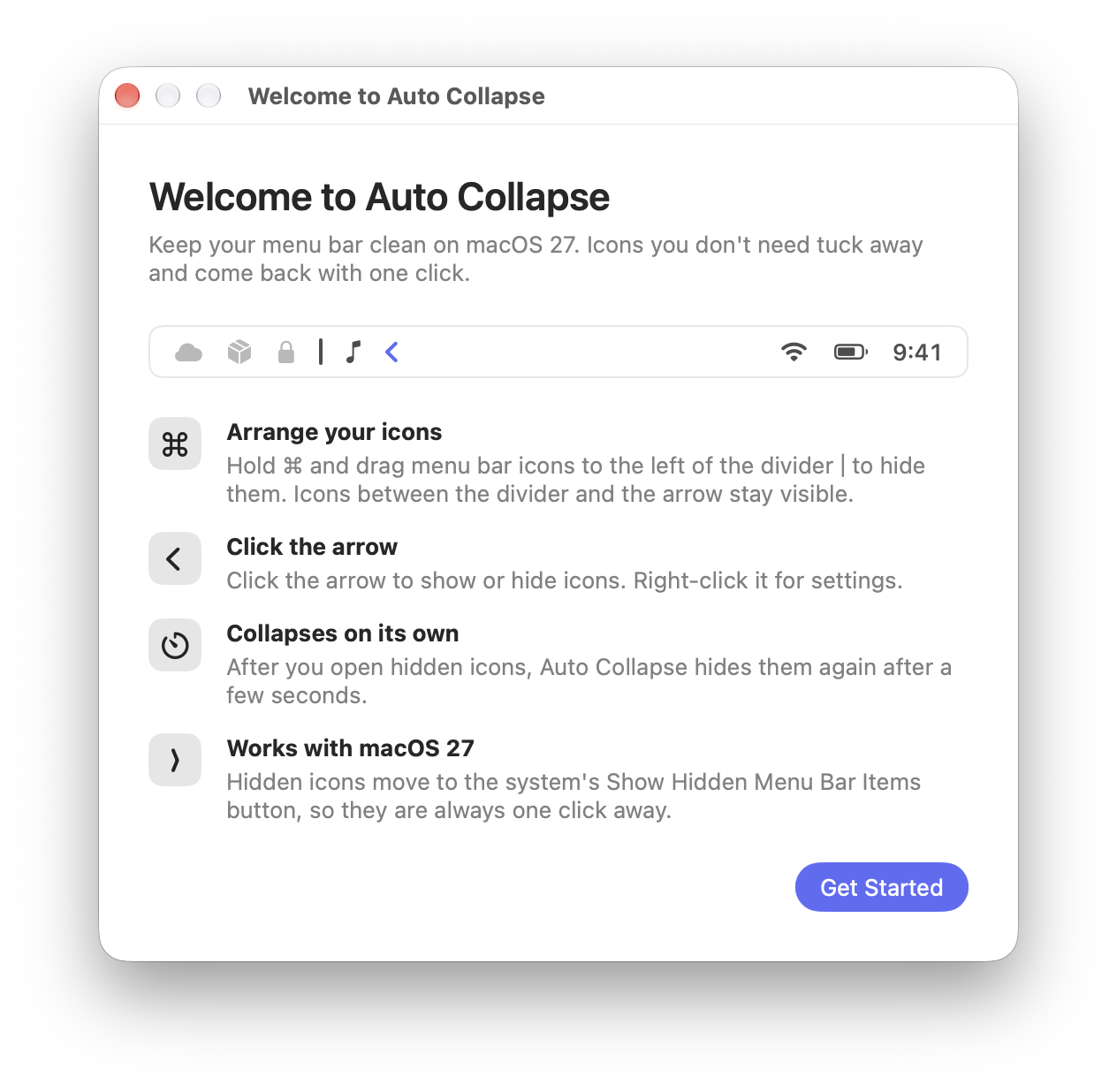
- Open the appAn arrow and a thin divider appear on the right side of the menu bar.
- Hold ⌘ and dragMove the icons you want to hide to the left of the divider. Icons between the divider and the arrow stay visible.
- Click the arrowThe icons hide; click again to show them. Right-click for settings.
Questions
Where do hidden icons go?
They move into macOS 27's Show Hidden Menu Bar Items button. Click the arrow or that button to see them any time.
Which macOS versions are supported?
macOS 27 or later. Auto Collapse is built for the new menu bar.
Does it collect personal data?
No. There are no accounts, servers, analytics or network access.